
How to make a plan in AI Parent
AI Parent turns a goal into one personalized plan with clear, actionable tasks and a schedule. Use the Planning page to choose who the plan is for, select a goal area, generate the plan, adjust the tasks, and save the finished plan to that person’s profile.
Current flow: Select a profile → choose a category → choose a focus area or goal → add optional Premium directions → tap “Next” → review and edit the generated tasks → save the plan.
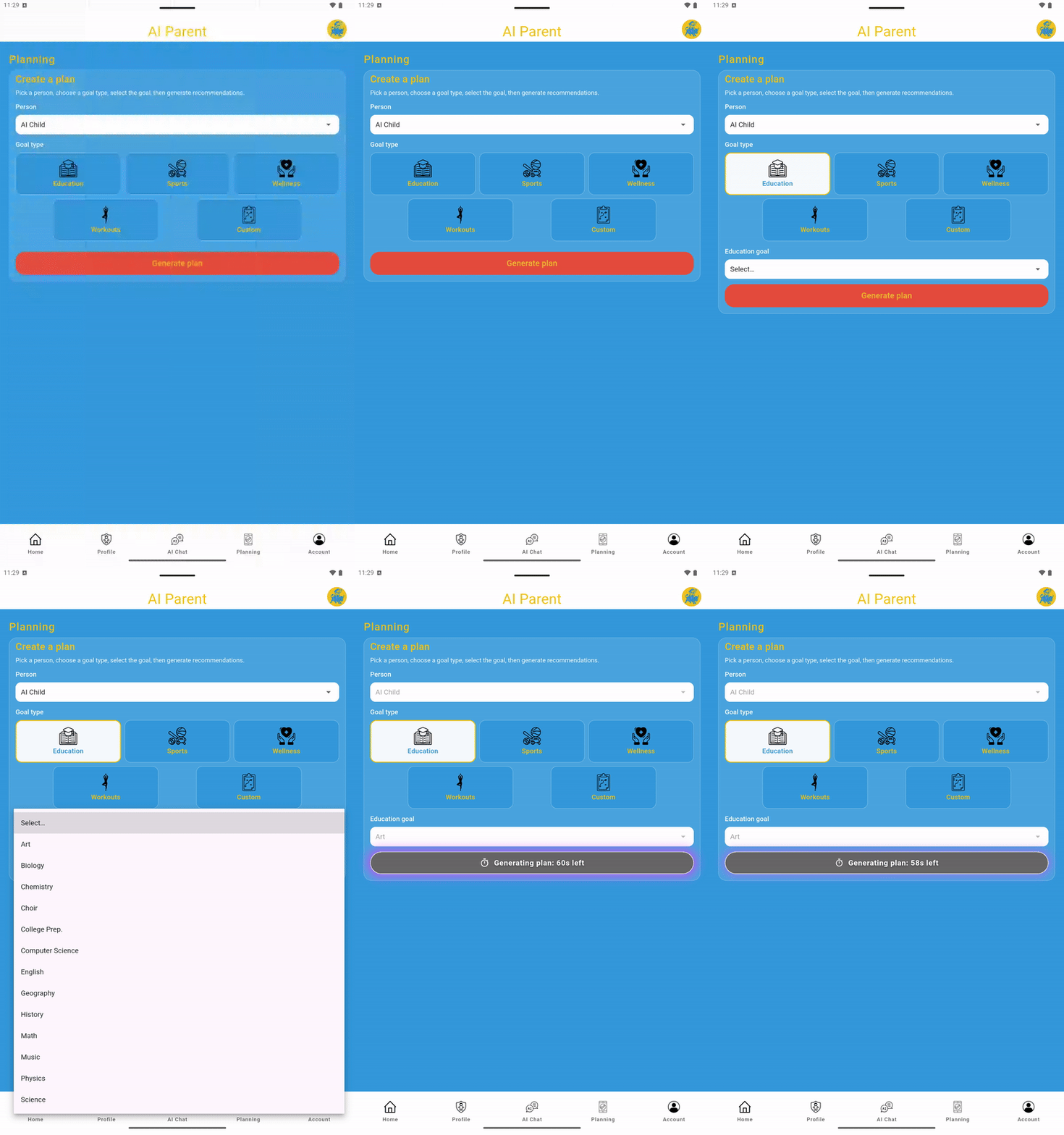
Step 1: Open the Planning page
Open the Planning page in AI Parent. You need at least one active profile before you can make a plan. Each saved plan belongs to the selected profile, allowing different people to have their own goals, tasks, and schedules.
Step 2: Select a profile
Choose the person who will follow the plan. This may be a child, yourself, another family member, or anyone else whose profile you have created. If your account has only one active profile, that profile may already be selected for you.
Step 3: Choose a plan category
Select the category that best matches the goal:
- Education: Reading, writing, math, science, homework support, study habits, music practice, and other learning goals.
- Sports: Sport-specific drills, practice routines, conditioning, skill development, and training consistency.
- Wellness: Sleep, healthy routines, stress management, self-care, family routines, and other wellness goals.
- Workouts: Strength, flexibility, cardio, mobility, conditioning, and general exercise routines.
- Custom: Chores, pet care, work responsibilities, hobbies, disaster preparation, travel preparation, or another personalized goal.
Step 4: Choose a focus area or enter a goal
After selecting a category, choose an available focus area or plan idea. Depending on the category, AI Parent may show suggested goals to help you get started. You can also enter a custom goal when that option is available.
Make the goal specific enough to guide the plan. For example, “practice multiplication facts three times a week” gives clearer direction than “math.” A goal such as “build a beginner strength and flexibility routine” is more useful than only entering “exercise.”
Step 5: Add optional comments or directions
Premium users can add custom comments and directions when creating a plan. Use this field to describe preferences, limitations, available equipment, preferred days, the amount of time available, or other details that may help personalize the output.
Privacy reminder: Only provide information that is reasonably needed to create the plan. Avoid unnecessary sensitive health, therapy, disability, school ID, exact address, or other highly personal information.
Step 6: Tap “Next” to generate one plan
When the selections look right, tap Next. AI Parent generates one personalized plan for the selected profile. The plan includes a plan title, a summary, and scheduled tasks designed to support the selected goal.
For the smoothest experience, remain on the Planning page until the generated result appears. If you leave while generation is running, the process may continue, but a completed result may not automatically reopen when you return.
Step 7: Review the generated plan
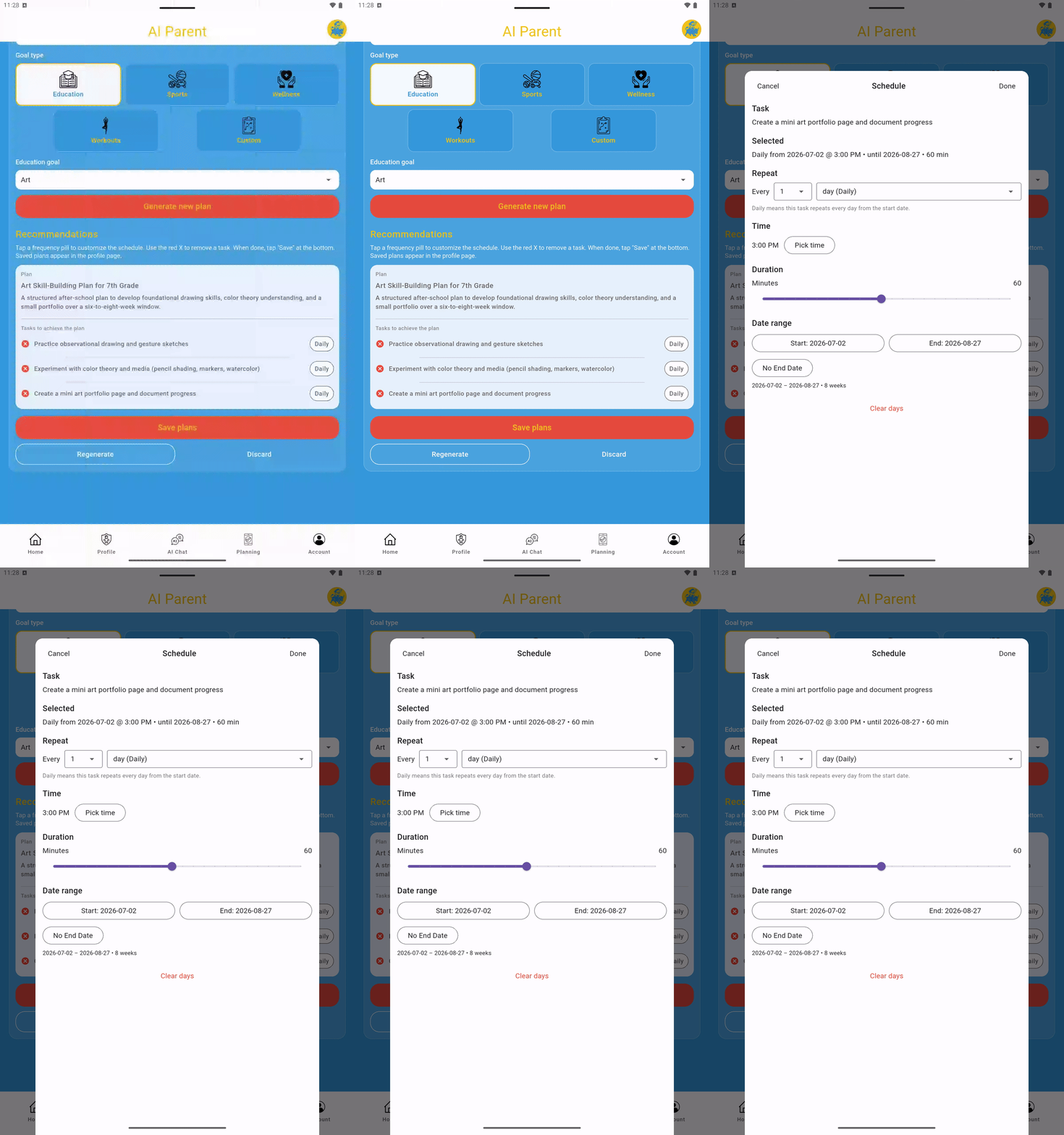
Review the plan before saving it. The generated plan should clearly identify the profile, category, goal, plan title, summary, and the tasks that make up the routine.
For each task, review the following:
- Task title: The action the person is expected to complete.
- Repeat schedule: Whether the task repeats daily, weekly, every few days, monthly, yearly, or on selected days.
- Days and time: When the task is scheduled to appear.
- Duration: The expected number of minutes for the task.
- Date range: When the task begins and, when applicable, when it ends.
A useful plan should feel clear, realistic, and easy to follow. Make sure the schedule fits the person’s actual routine and that each task directly supports the goal.
Step 8: Edit or remove tasks before saving
You do not have to keep every generated task exactly as written. Remove tasks that are not useful and edit the remaining tasks as needed. You can update a task title and adjust its schedule, selected days, time, date range, and duration.
Keep the plan manageable. A shorter plan that can be followed consistently is usually more useful than a demanding plan that does not fit the person’s schedule.
Step 9: Save the plan
Save the plan after the task titles and schedules look right. The plan is then connected to the selected profile and can be reviewed later from the Profile page.
After saving, scheduled tasks can appear on the Home page and in Calendar View when they are due. Today’s scheduled tasks may be marked complete from the available task or calendar view, helping you track progress, task-completion points, and consistency over time.
Edit a saved plan later
Open the saved plan from the person’s Profile page when you need to make changes. You can revise task titles, update schedules, adjust task duration, or remove tasks that no longer fit the goal or routine.
Tips for better plans
- Choose the closest category. This gives AI Parent better context for the type of tasks to create.
- Use a specific goal. Describe the result, skill, or routine you want to build.
- Add useful details. Premium users can add comments about available days, time limits, preferences, skill level, equipment, or other plan needs.
- Review every task. Check the title, days, time, duration, and date range before saving.
- Start small. A realistic routine is easier to complete consistently.
Best practice: start small (10–20 minutes/day). Consistency beats intensity.
Planning credits and limits: Each generated plan uses 1 plan-generation credit. Free users may have up to 10 active plans per profile, while Premium users may have up to 20 active plans per profile. New AI Parent users can start creating plans without encountering a paygate, making it easy to begin planning right away.
Summary
To make a plan, open Planning, select a profile, choose Education, Sports, Wellness, Workouts, or Custom, choose a focus area or enter a goal, add optional Premium directions, and tap “Next.” AI Parent generates one plan.
Review the output, remove anything you do not need, edit the task titles and schedules, and save the plan. Saved tasks can then become part of the selected person’s Profile, Home, and Calendar routine.